OpenCart Price Change by Option


Introduction:
Frustrated by customers abandoning carts due to changing prices?
Want a way to show accurate pricing instantly as options are selected?
Looking for a solution that keeps your store transparent, professional, and customer-friendly?
The OpenCart Price Change by Variant module by RCV Technologies is specifically designed to tackle these challenges. With this extension, customers can see real-time price updates as they select options such as radio buttons, checkboxes, or dropdown menus. This ensures that shoppers always know exactly how much they will pay, reducing confusion and hesitation. Beyond improving clarity, the module enhances the overall shopping experience, builds trust, and helps customers make informed purchasing decisions, leading to higher satisfaction and potentially increased sales for your store.

Features: OpenCart Price Change by Variant
- Dynamic Price Updates: Prices change instantly based on selected options.
- Multiple Option Support: Works with radio buttons, checkboxes, and dropdowns.
- Real-Time Display: Customers see price changes immediately during selection.
- Enhanced Shopping Experience: Reduces confusion and improves checkout clarity.
- Easy Configuration: Enable and manage settings directly from the Admin Panel.
- Seamless Integration: Works smoothly with the existing OpenCart store setup.
- Customizable Options: Supports varied product option combinations and pricing.
- Customer Transparency: Shows accurate pricing before adding items to the cart.
Note: Ensure your OpenCart version supports this module before installation.
Installation: OpenCart Price Change by Variant
Steps to Install the Module
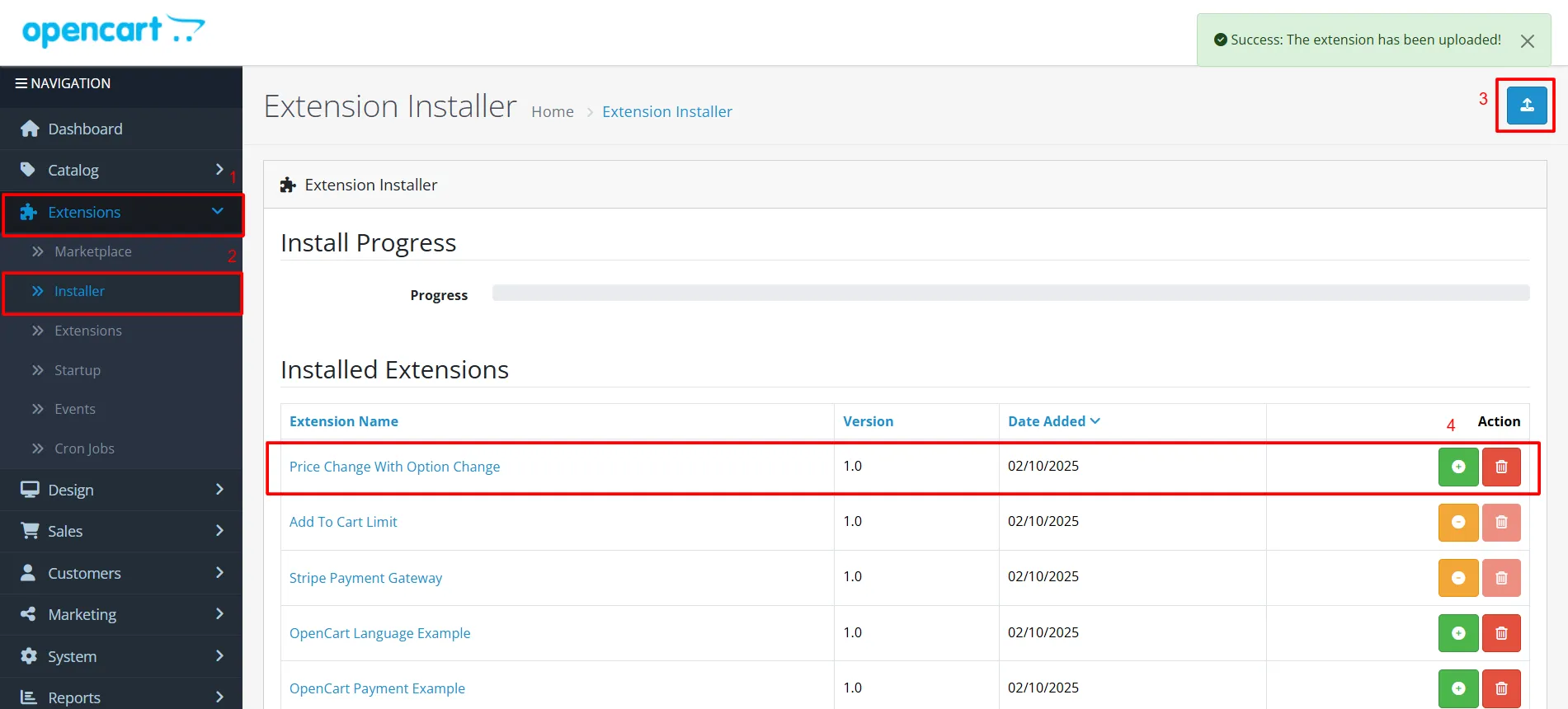
OpenCart’s Admin panel >> Extension >> Installer
- Access Extensions in Admin Panel: Log in to OpenCart’s Admin Panel, navigate to the ‘Extensions’ menu, and select ‘Installer’ from the dropdown.
- Upload the File: On the Installer page, click the file upload icon in the top-right corner. Ensure the file you want to upload is saved on your system with the extension ‘.ocmod.zip’.
- Install the Module: Once the file is uploaded, the module name will appear in the list. Click the green button next to it to complete the installation process.
Permission: OpenCart Price Change by Variant
Now, grant the store administrators permission to edit the module.
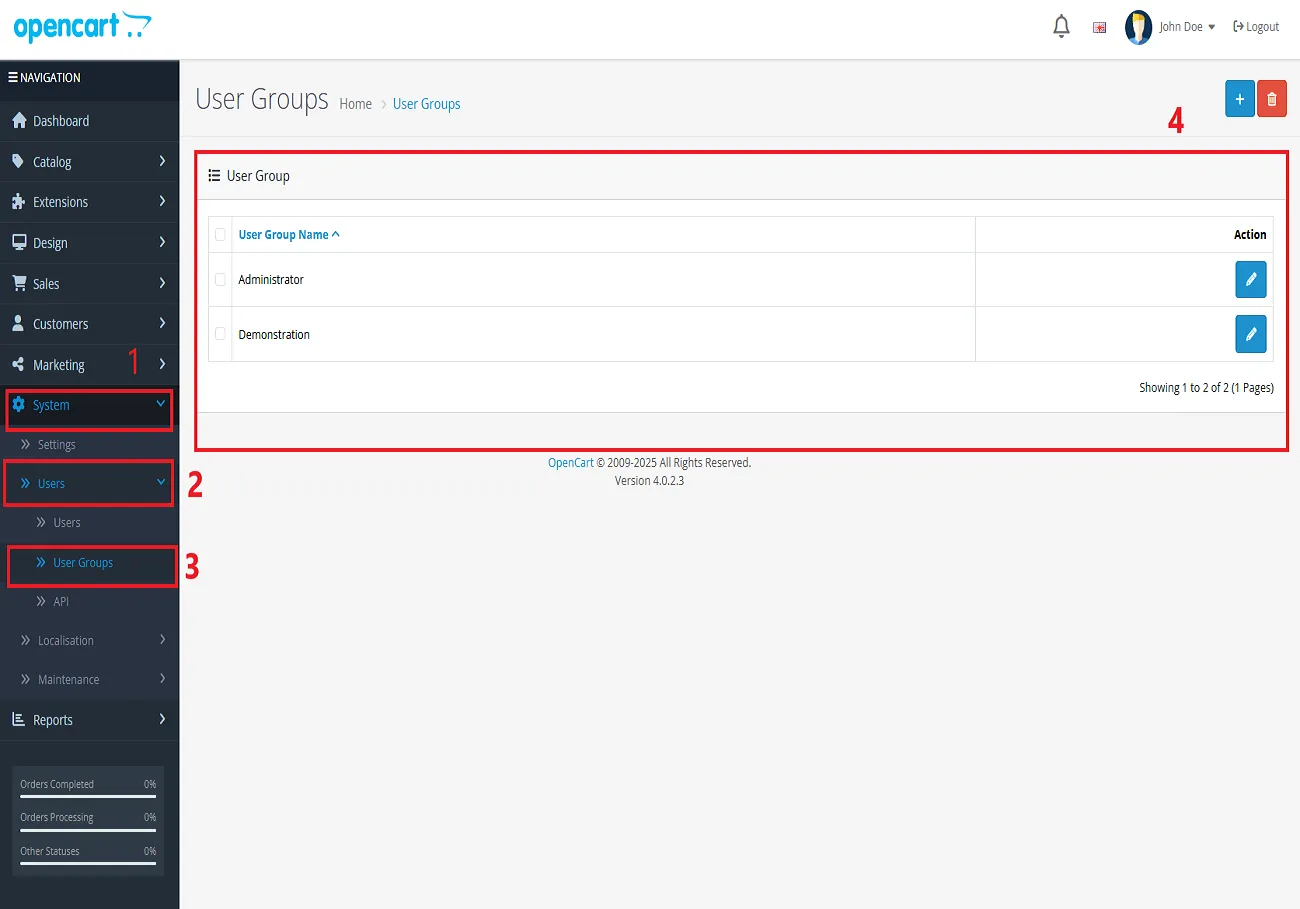
OpenCart’s Admin panel >> System >> User >> User Groups >> Edit Administrator
- Go to OpenCart’s Admin Panel and click on ‘System’ to see the drop-down list.
- Then click on ‘Users’.
- A drop-down list will appear when you click on ‘Users.’ From the list, click on ‘User Groups.’
- Edit Administrator will allow permission for the user.
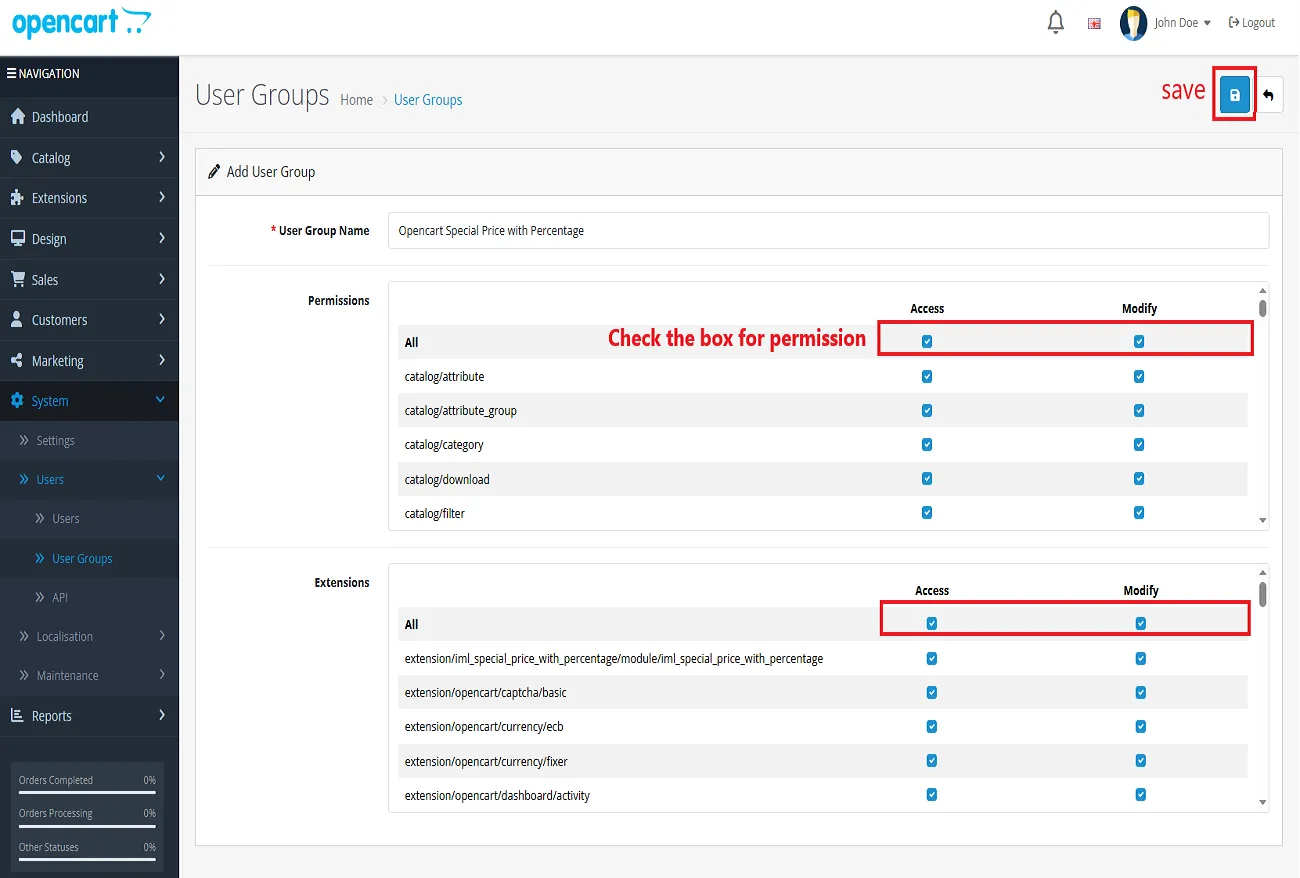
- Set access and modify permissions for all related modules.
Configuration: OpenCart Price Change by Variant
OpenCart’s Admin panel >> Extensions >> Extensions >> Choose The Extension Type >> Module >> OpenCart OpenCart Price Change by Variant >> Install and edit.
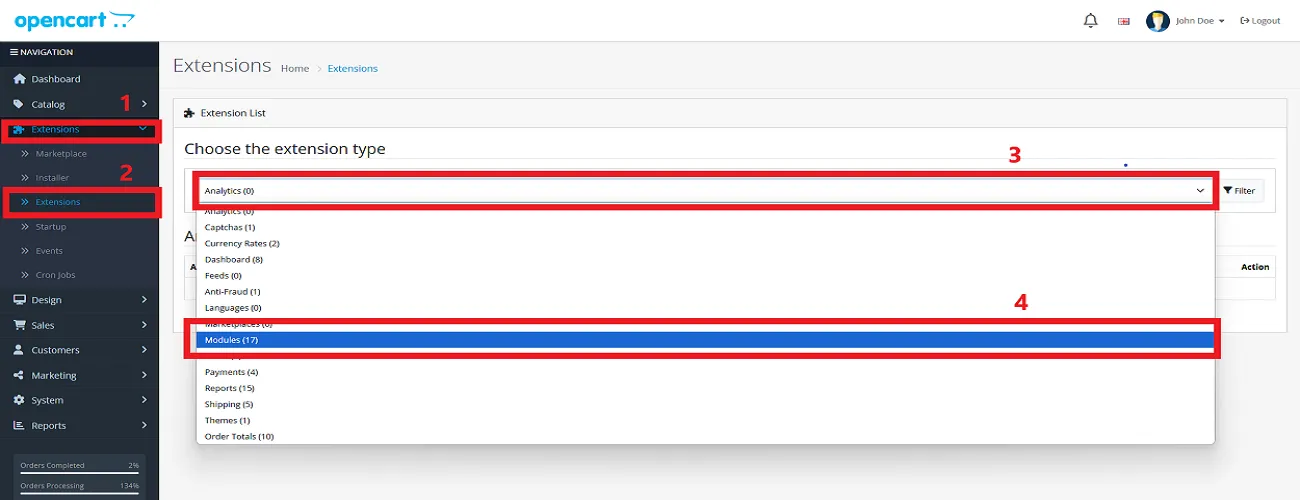
- Go to OpenCart’s Admin Panel and click on ‘Extensions’ to see the drop-down list.
- Again, click on ‘Extensions’ from the drop-down list.
- Choose your Module type.
- Click on the Install button as mentioned in the image below and install the module.
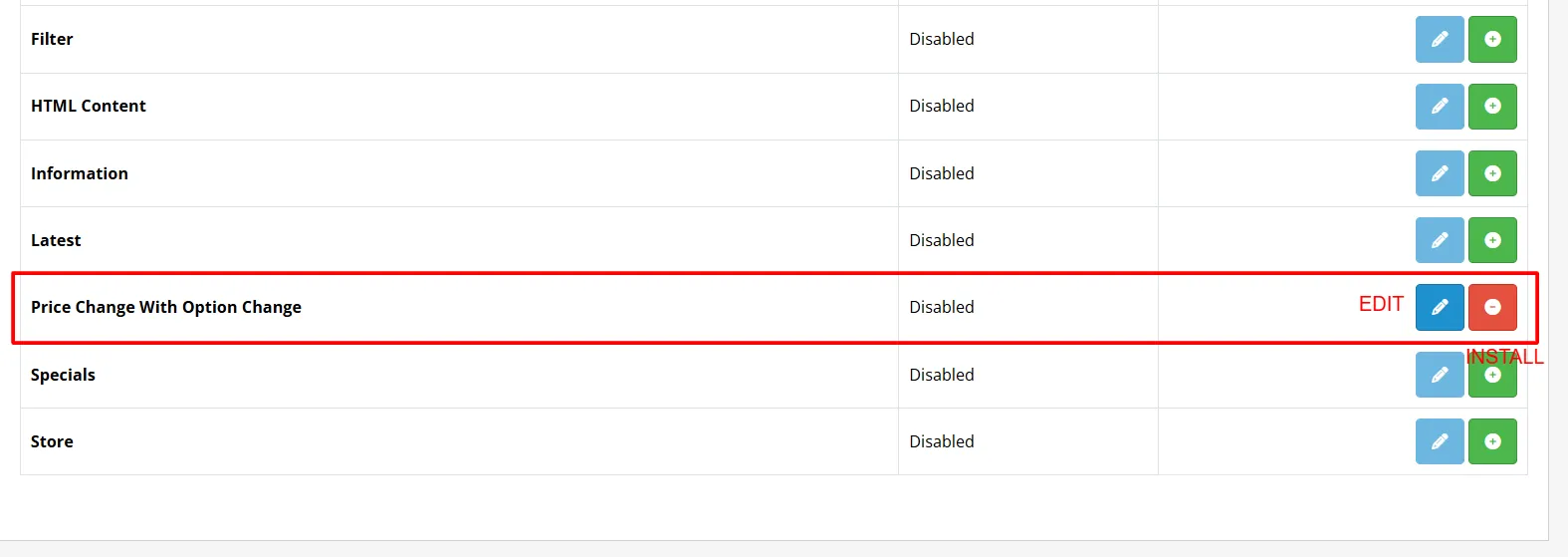
- Click the edit button, set the status to ‘Enable’, and save.
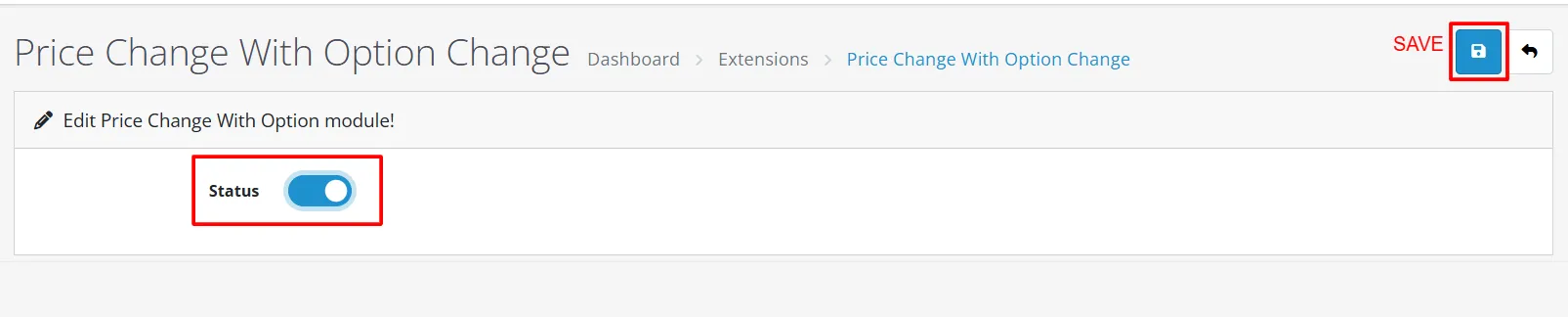
Finally, the module installation, permission, and configuration are completed with this step.

Customer Interface: OpenCart Price Change by Variant
With each selection, you can see the changes in price. For example, the original price of the Apple Cinema 30″ in our store is $110.00, but when you select the radio and checkbox option of your choice, this will vary from $124.00 to $276.00.

With this module, you can provide clear, real-time pricing for all product options, enhancing the shopping experience and building customer trust.